APP STORE · OFFICIAL LISTINGOfficial manual
Shadowrocket Download and Official App Verification
Open the product pageDownload on the App StoreShadowrocket is a paid app on the App Store, purchased once at the price shown by the store. Check your account region and the product details before downloading it on your iPhone or iPad. See the App Store listing for current pricing and system requirements.
Storefront and account region
The button above opens Shadowrocket's App Store product page. Whether the app appears in your storefront depends first on the country or region of the signed-in Apple ID, not your device's location. The app is unavailable in the China mainland storefront. If search returns no results, check which storefront you're using rather than repeatedly trying different search terms. The region in a product link requests a storefront when the page opens; whether you can buy the app depends on your account, the store's prompts, and applicable requirements.
On iPhone or iPad, open Settings, tap your Apple ID, then check Media & Purchases and Country/Region to confirm the account's current region. Menu names and locations may vary by system version, so follow what appears on your device. For information about changing regions, use Apple's official guidance and on-screen prompts in those settings. Payment methods, account balance, and existing purchases may affect the process. This guide explains where to check; it does not assume your account can change regions.
Once you've confirmed the storefront, open the product page above and verify the app. Even if the page displays product details, check the developer name, icon, and app ID in the page URL before tapping the purchase button. Prices are shown in the storefront's currency; check the amount on the purchase confirmation screen for the amount charged to your account. If the page says your device is incompatible, review its compatibility section. Refer to the App Store listing for system requirements rather than relying on what appears on another device.
Verify the official Shadowrocket app
Search results may include apps with similar names. Cross-check three details on the same product page instead of relying on the name or screenshots alone.
First, check the developer. On the App Store product page, verify the full developer name: Shadow Launch Technology Limited. An app name identifies how a search result is labeled; the developer details are an important way to identify the product. If the developer doesn't match, stop and check the product page again. Don't proceed with a purchase based on a similar name or description.
Second, check the icon. Shadowrocket's official icon is a rocket on a white background, outlined in blue and purple. The icon shown on this page uses the same App Store artwork as the site header. It's useful for a quick visual check, but a similar image is not a substitute for verifying the developer. Check both the icon and developer on the App Store page instead of relying on a search-result thumbnail.
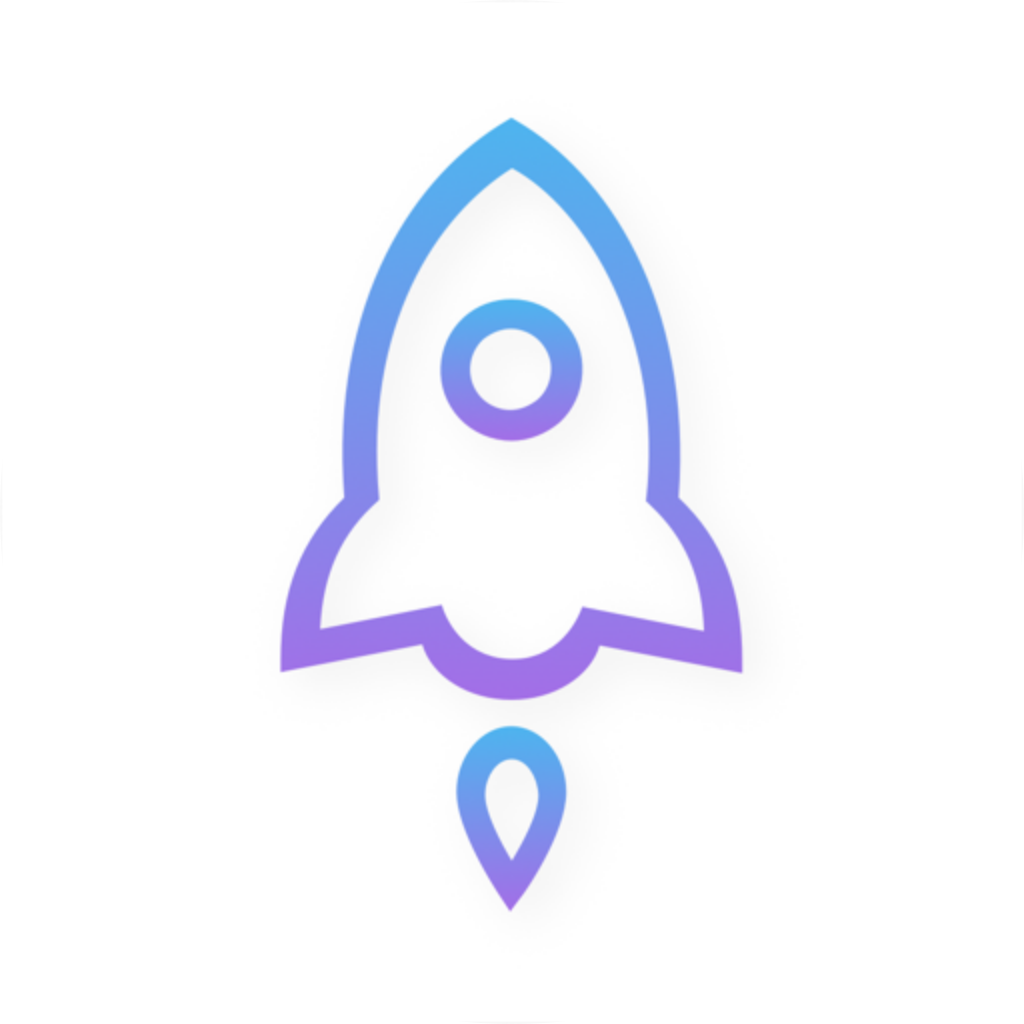
Check it alongside the developer name and app ID on the product page.
Third, check the app ID. Shadowrocket's app ID is 932747118, and the product page URL ends with id932747118. After opening the external link, check this part of the URL, then confirm the developer and icon on the product page. All three details should identify the same app. If anything doesn't match, don't rely on appearance alone. Store descriptions and screenshots can change; the developer and app ID are more reliable details to cross-check.
The two images on the right are official screenshots displayed on the App Store by the developer. They show interfaces you may see after purchase: Home includes connection status, Global Routing, Connectivity Test, and the SERVER section; Add Server shows fields such as Type, Host, and Port. The screenshots illustrate in-app screens; they are not proof of purchase and cannot verify the identity of an app in search results on their own. The layout and available settings may vary in the current version.
After verification, review the store price, compatibility, and purchase confirmation details. This is an official manual. If anything here differs from the current App Store listing, follow the product page and the wording shown in the app.
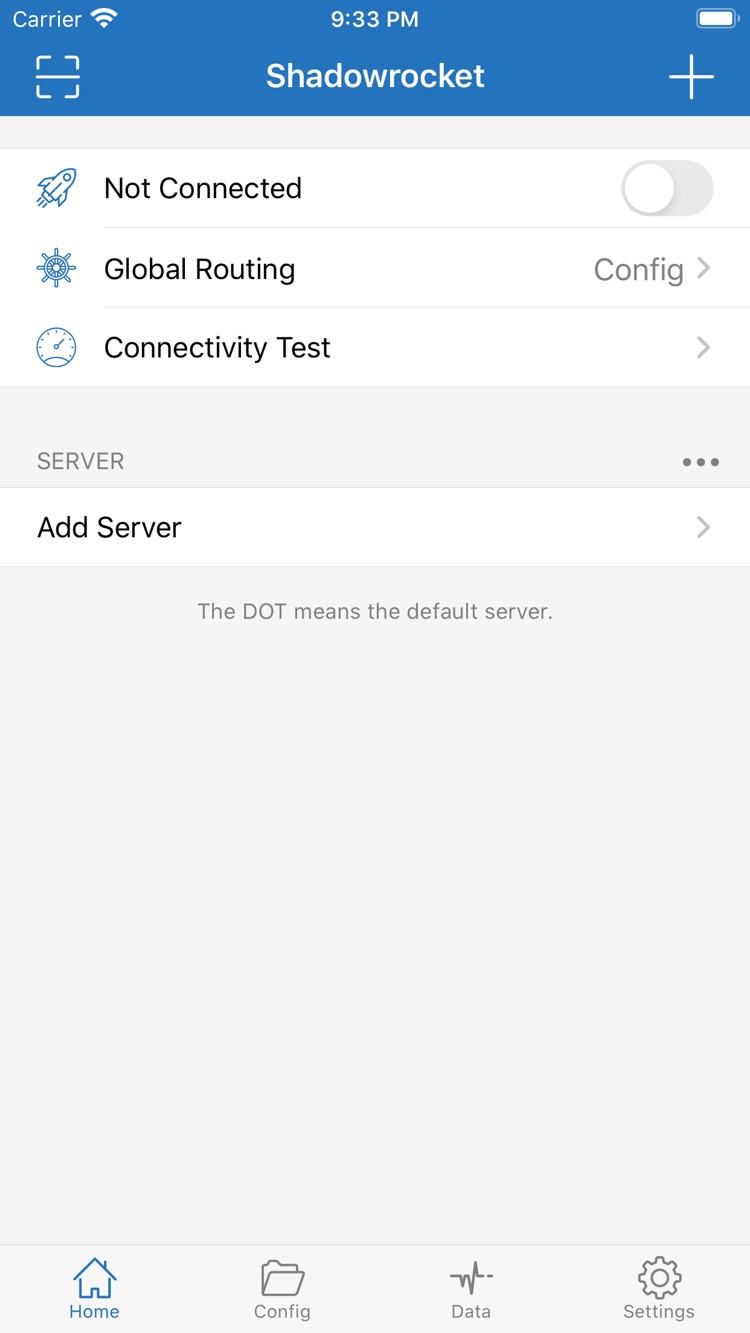
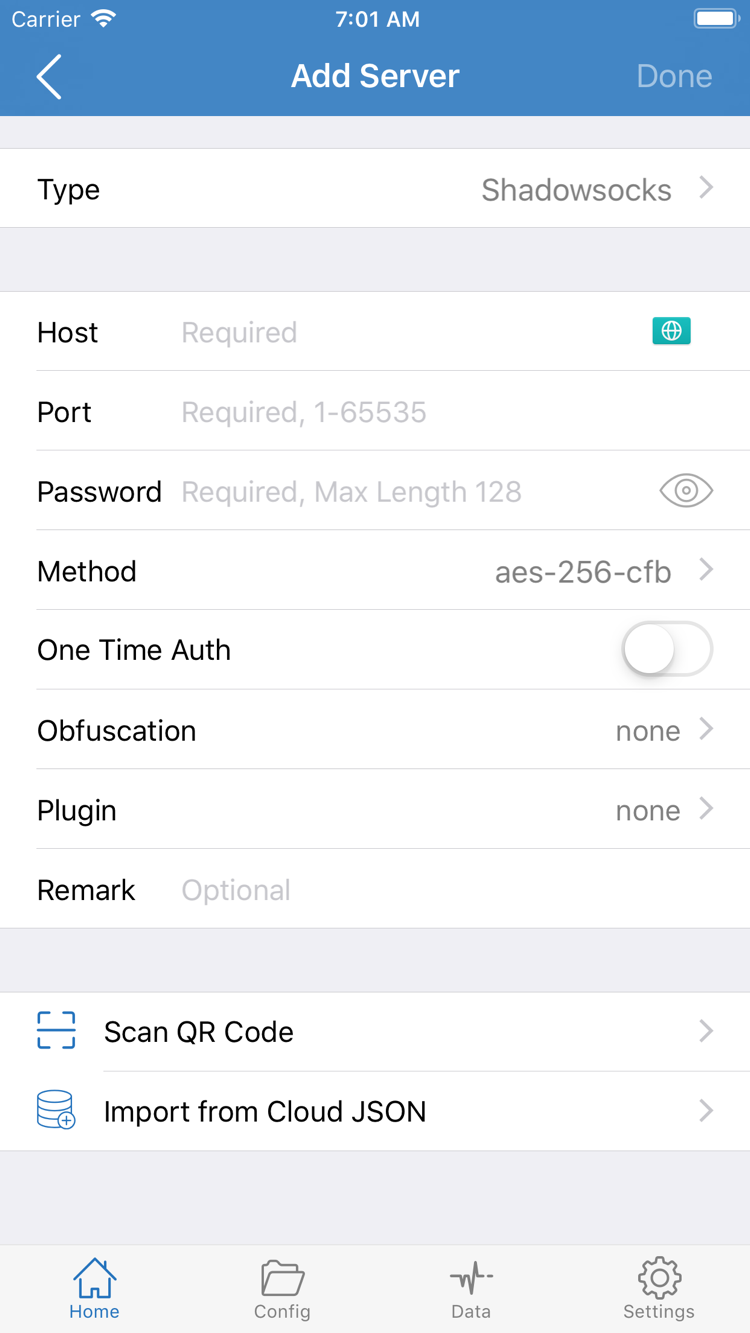
Download on iPhone
On your iPhone, first make sure the App Store is signed in with the Apple ID you intend to use for the purchase, then open the Shadowrocket product page. Verify the developer, Shadow Launch Technology Limited, the official icon, and app ID 932747118. Review the price and compatibility shown by the store; check the listing for system requirements. Once you've confirmed the details, complete the purchase and download through the App Store. When the app appears on your Home Screen or in the App Library, open it to begin setup.
When you first open Shadowrocket, enabling a connection may prompt iOS to let the app add a VPN configuration. Read the system prompt and decide whether to allow it. Granting permission does not provide connection details: the app uses subscription or server information you already have. On Home, identify the connection status, Global Routing, and SERVER section, then choose how to import your own details. There's no need to keep toggling the connection before entering any information.
If you can't find the app right after purchasing, check your purchase status and purchases on the App Store account page, then look on your Home Screen and in the App Library. If the store still shows a purchase requirement or compatibility prompt, follow the instructions for your account. Don't assume you'll see the same buttons as in someone else's screenshot; the storefront, account status, and device requirements can all affect the product page.
A completed download means the app is on your device. You'll still need to get the correct import details from your own service information and add them in the app. Buying Shadowrocket does not automatically enter a server address. If you're new to the app, check the status on Home before setting up your import and Global Routing. This helps distinguish an unconfigured app from a connection that can't access the network, making further troubleshooting clearer.
Download on iPad
Shadowrocket is available for iPhone and iPad. If you've already purchased the app with an Apple ID, use that account in the iPad App Store to view the product page or your purchases and redownload it if the store offers that option. The iPad must be signed in with the account used for the original purchase, and the current storefront must show the purchase record. If the store asks you to confirm payment, check the signed-in account and purchase history rather than relying on the app icon appearing on another device.
On iPad, the larger screen may change list widths, button positions, or the use of split views. Look for features by their English interface labels, such as Home, Global Routing, and Add Server, rather than following the exact positions on an iPhone screen. Screenshots can help identify page names and key fields, but use the interface shown on your iPad as the reference. Check the App Store listing for system requirements.
Purchase history and in-app connection details are separate. Even if Shadowrocket is available to redownload on your iPad, you'll still need to import, check, and update your own subscription or server details as needed. During setup, make sure the imported information is complete, then choose a Global Routing mode and use the connection toggle. If Shadowrocket connects on your iPhone but not on your iPad, compare the configurations and in-app status on both devices before assuming you need to buy it again.
The compatibility section of the same App Store product page also lists Mac, Apple TV, and Apple Vision. Check the listing for availability, whether the purchase is universal, and system requirements. To check these devices, use the same App Store product page; don't infer their requirements from the purchase prompts shown on iPhone or iPad.
Switching devices and restoring purchases
After getting a new iPhone, resetting your device, or reinstalling the app, first make sure the App Store is signed in with the Apple ID used to purchase Shadowrocket. Open your App Store account and look for Shadowrocket under purchases, or check the store button on the product page for the current account. Purchases are linked to the account, and you can usually redownload a purchased app with the same Apple ID without paying again. If the purchase status differs from what you expect, check the account's actual purchase history and App Store prompts before paying again.
If Shadowrocket isn't in your purchases, check these items in order: Is the current Apple ID the one used for the original purchase? Does its country or region match the one you expect? Is the app on the App Store page the Shadowrocket with app ID 932747118? Pay particular attention to the difference between the account shown in Settings and the account actually used for Media & Purchases in the App Store. Apple account and storefront rules determine which purchase records you can view; this guide can't verify a transaction for you.
After redownloading the app, handle purchase status and configuration details separately. Whether server addresses, subscription links, or rule configurations are available on your new device depends on how you saved or transferred them. A redownloadable purchase doesn't guarantee that in-app details will be restored. Open Home and check the SERVER list and Config, then import anything missing from your own information. If you use a subscription, check the URL you've saved, update it in the app, and review the list.
To restore a connection, work through one item at a time: verify the imported details, check Global Routing, then enable the connection and use Connectivity Test to see if it can establish the required connection. This helps separate purchase-history issues from app configuration and network connectivity problems. If you have a purchase record but can't connect, buying the app again won't usually change your connection details. Review your configuration and troubleshooting steps instead.
Price and what the purchase includes
Shadowrocket is a one-time app purchase, with no monthly app fee. The US App Store listing shows a price of about $2.99; other storefronts display prices in local currency. Prices may change, so check the current App Store product page and purchase confirmation for your Apple ID. Before buying, confirm the amount, currency, and account; a price shown in another region may not match what you'll pay in your storefront.
Buying the app is not the same as buying a connection plan. This charge covers the Shadowrocket app purchase only; it doesn't include a subscription, node, or server for connecting. This guide does not provide or sell nodes or subscriptions, or manage connection details on behalf of any service. It assumes you already have your own subscription or server information and explains how to verify the app, purchase it through the store, and use your existing details in the app.
Purchases are linked to the Apple ID used to buy the app. When switching devices, first check whether you can redownload it under that account's purchases. Follow the checks above for iPhone and iPad; for other devices, refer to the App Store listing for purchase eligibility and system requirements. For Family Sharing and other purchase access, follow the conditions shown for the app and account in the store; these aren't the same as restoring a purchase with the original Apple ID.
Checking the purchase separately from your connection details helps avoid two common misunderstandings: you bought the app but can't connect because you haven't imported your own information, or your device has connection details but you can't find the purchase because you're using a different Apple ID. In the first case, check Home, SERVER, and the imported details. In the second, check your App Store account and purchases. These issues have different solutions; repeated payments or toggling the connection won't replace checking the relevant details.
Download and purchase FAQ
Use these answers to decide whether to check your account, app identity, or device requirements next. For current transaction and compatibility details, refer to the App Store.
What should I do if Shadowrocket doesn't appear in App Store search?
First, check the country or region associated with your Apple ID. It determines which App Store storefront you see; the app is unavailable in the China mainland storefront. Availability and eligibility for changing regions vary; follow Apple's on-screen guidance. Once you've confirmed your region, use the product link on this page to see whether the listing opens, then verify the developer and app ID.
What should I check if the product page opens but I can't download the app?
Check the region of the signed-in account, payment status, and device compatibility shown on the App Store page, then follow its instructions. Refer to the listing for system requirements. If a purchase confirmation appears, check the price, currency, and signed-in account before confirming.
Do I have to pay again when I get a new iPhone?
Sign in with the Apple ID used for the original purchase, then find Shadowrocket under your App Store account's purchases. You can usually redownload a purchased app; check the purchase history and store prompts shown for that account. After redownloading, check whether you need to import your connection details again.
Can I use Shadowrocket on my iPad after buying it on iPhone?
When your iPhone and iPad use the same Apple ID, open App Store purchases on the iPad and download Shadowrocket. Check the listing for system requirements. You'll still need to import your connection details in the app; downloading it doesn't mean your configuration is already in place.
Can I get Shadowrocket on Mac, Apple TV, or Apple Vision?
The compatibility section of the same App Store listing includes Mac, Apple TV, and Apple Vision. Check the listing for each device's system requirements, availability, and whether the purchase is universal. Use the store information shown on the device you're checking.
The app interface is in English. How do I follow this guide?
This guide keeps in-app labels such as Home, Add Server, and Global Routing in English and explains what they do. Refer to the wording shown in the app; layouts may vary slightly by device. The official screenshots on the right can help you identify Home and Add Server, but follow the interface on your device.